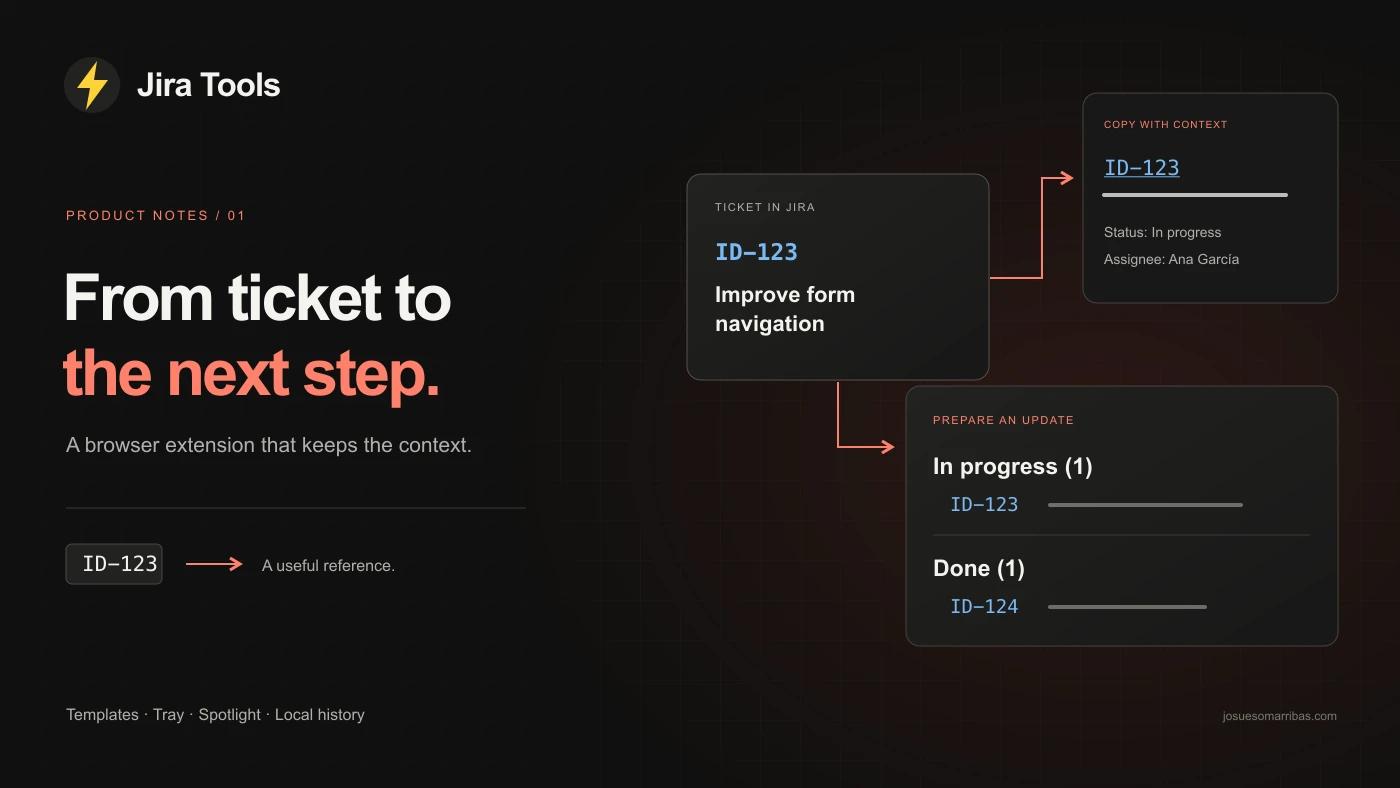
Sharing a ticket should be a small task. Yet a bare link often makes the recipient open Jira just to find out what it is about. Add the title manually, and you may still need the status, the assignee or the same formatting you used in the previous message.
I built Jira Tools to handle that work around the ticket: copying a useful reference, collecting several tasks and opening an issue when you already know its ID. It is a Chrome extension that stores preferences, a ticket tray and history in your browser.
This article covers version 2.1.0. At the time of publication, the extension is under review in Chrome Web Store. The screenshots show its Spanish interface with fictional data.
A reference you can understand before opening it
The starting point is simple: copy the current ticket’s linked ID and title. The person reading your message gets a recognisable reference and can decide whether they need to open Jira.
Where you paste also matters. A document with a visual editor, a Markdown note and a plain text field expect different content. In Jira Tools, copy format and template are separate settings: the format determines how the link is written; the template determines what information accompanies it.
The basic template includes the ID and title. The Slack template adds status and assignee on a second line. The documentation template prepares a fuller reference, while a custom template lets you combine variables such as {link}, {title} and {status} with your own text.
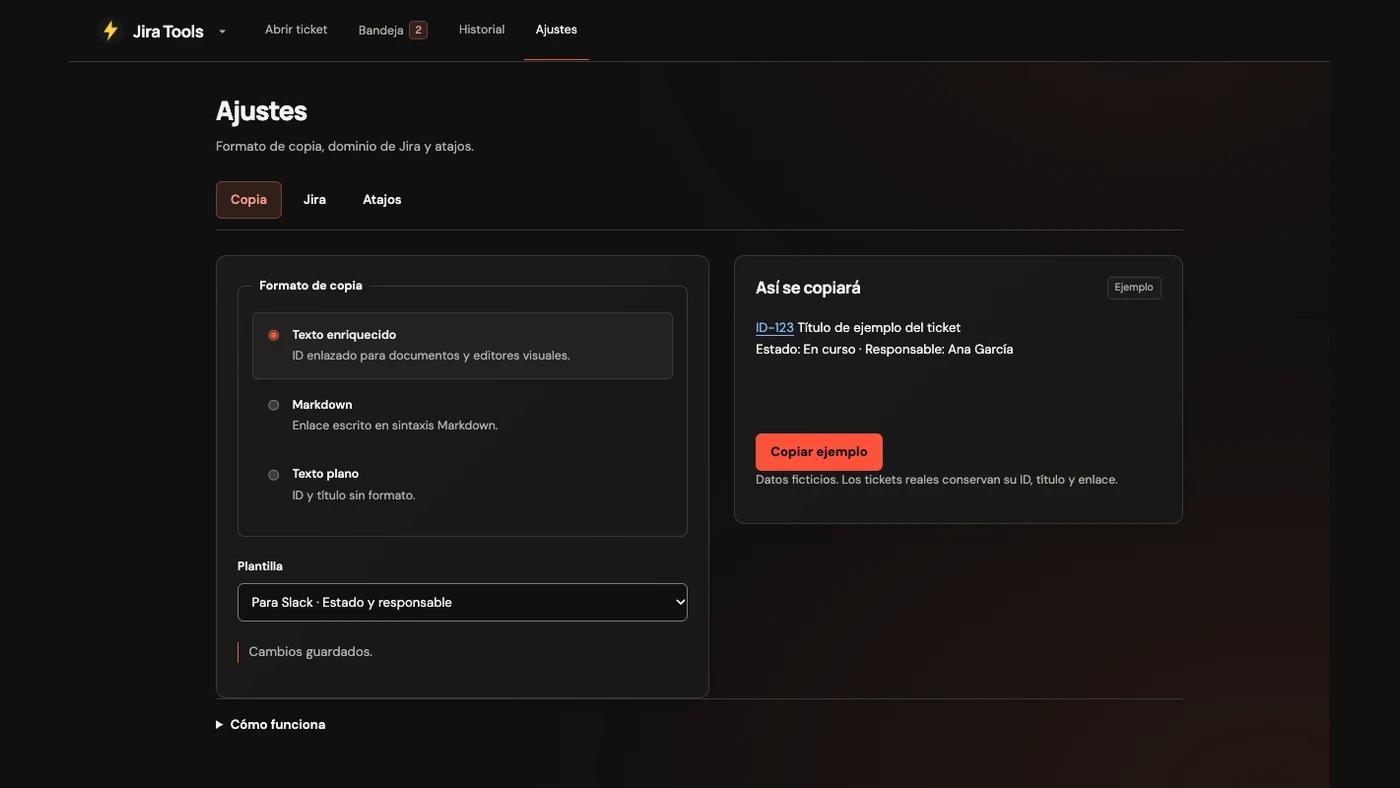
For example, you could use this custom template:
{link} — {title}
Status: {status}
Assignee: {assignee}
The “Copy example” button lets you test an actual paste in the destination app. The preview helps, but whether a link keeps its formatting also depends on the editor receiving it.
Know the ID? Go to the ticket
If someone mentions ID-123 in a conversation, your next action can be typing that ID. Spotlight opens a search overlay on the current page, shows the destination and opens the ticket in a new tab when you press Enter.
First, save your instance’s domain in Settings → Jira. The search box then builds the address using that domain. It does not check whether the ticket exists or whether you have access; Jira handles that when you arrive.
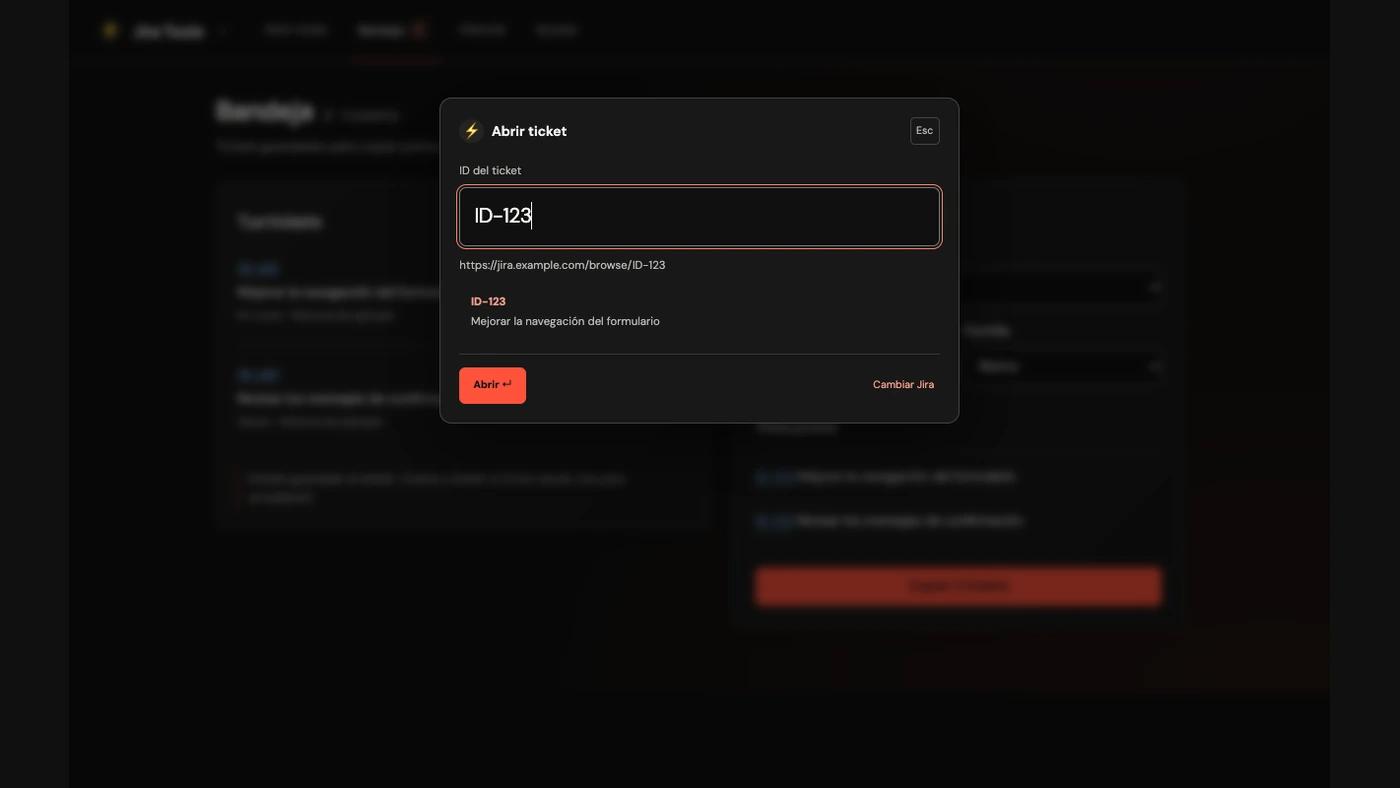
The suggested shortcut is ⌘⇧O on Mac and Alt+Shift+O on Windows and Linux. If another action already uses that combination, change it at chrome://extensions/shortcuts. The extension’s shortcut settings show the combinations actually assigned.
You can also use Chrome’s address bar: type jira, press Tab, enter the ID and press Enter. On protected pages where Chrome does not allow an overlay, the extension uses its popup or a compact window instead.
From a few tickets to a status update
To prepare a standup or a report, add tickets to the tray. There you can review their details, remove anything you no longer need and copy the full selection in your chosen format.
Adding a ticket that is already saved refreshes its data without creating a duplicate or changing its position. Copying tickets does not empty the tray, either: collecting information and putting it on the clipboard are separate actions.
The “Update by status” option turns that selection into sections such as “In progress” and “Done”, with a ticket count for each group. The preview lets you check what you will share before copying it.
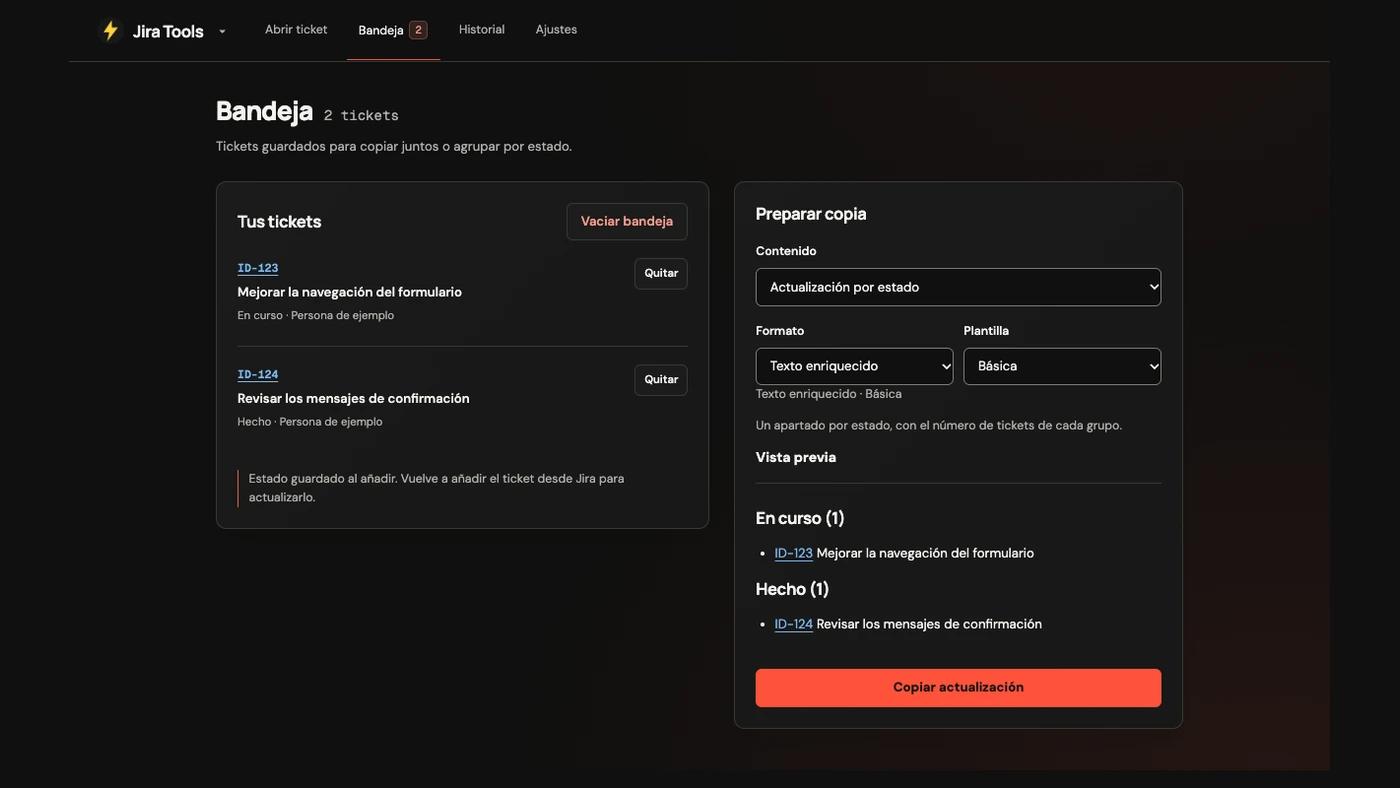
That last detail matters when reading the report: the data is a snapshot. If a ticket changes status in Jira, the tray does not check it in the background. Add it again to refresh the data before sharing your update.
Find a ticket you already copied
History keeps up to 100 distinct copied tickets, with the most recent first. Search by ID or title, open a link or copy a ticket again using your current template and format.
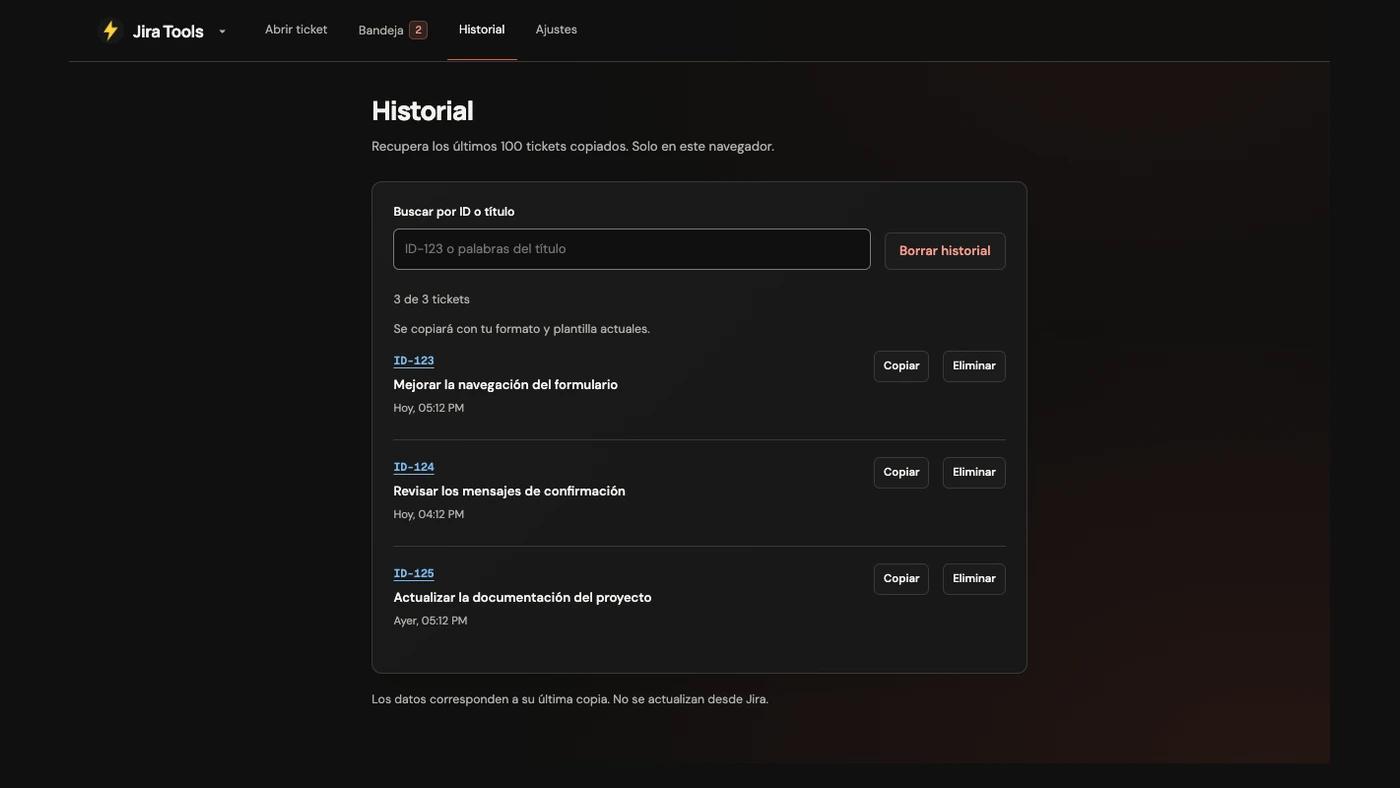
The tray and history have different purposes. The tray is a selection you prepare; history helps you retrieve references you have already copied. Clearing history does not change the tray, and opening a ticket without copying it does not create a history entry.
The small decisions that shape the tool
The interface keeps each selection close to its result: tickets beside the report, settings beside the preview and the ID beside its destination. The design lets you review the result in the same place you prepare it.
The lightning menu brings together seven actions and shows their shortcuts. With the menu open, keys 1 through 7 activate each option. While you type in a field or in Spotlight, those keys stop triggering menu actions.
The extension reads ticket information when you invoke its features. It does not modify tickets, use a token or the Jira API, or send your tray or history to a developer server. Preferences and saved tickets stay in the browser. The privacy policy explains the details.
There are specific limits. Some Jira views may need changes to the selectors that read their fields. Installations requiring a path prefix are not covered by Spotlight’s current domain settings. Keyboard shortcuts depend on conflicts within your Chrome profile. Compatibility with your instance and the editor where you paste needs checking in that environment.
What you can see now
The Jira Tools page brings together its features and publication status. While the extension is under review, the page states that installation from Chrome Web Store is not yet available.
The project focuses on a short journey: leave Jira with a reference someone can understand, then return to a ticket without retracing your steps. Copy formats, the tray and history keep the context between those two moments.